
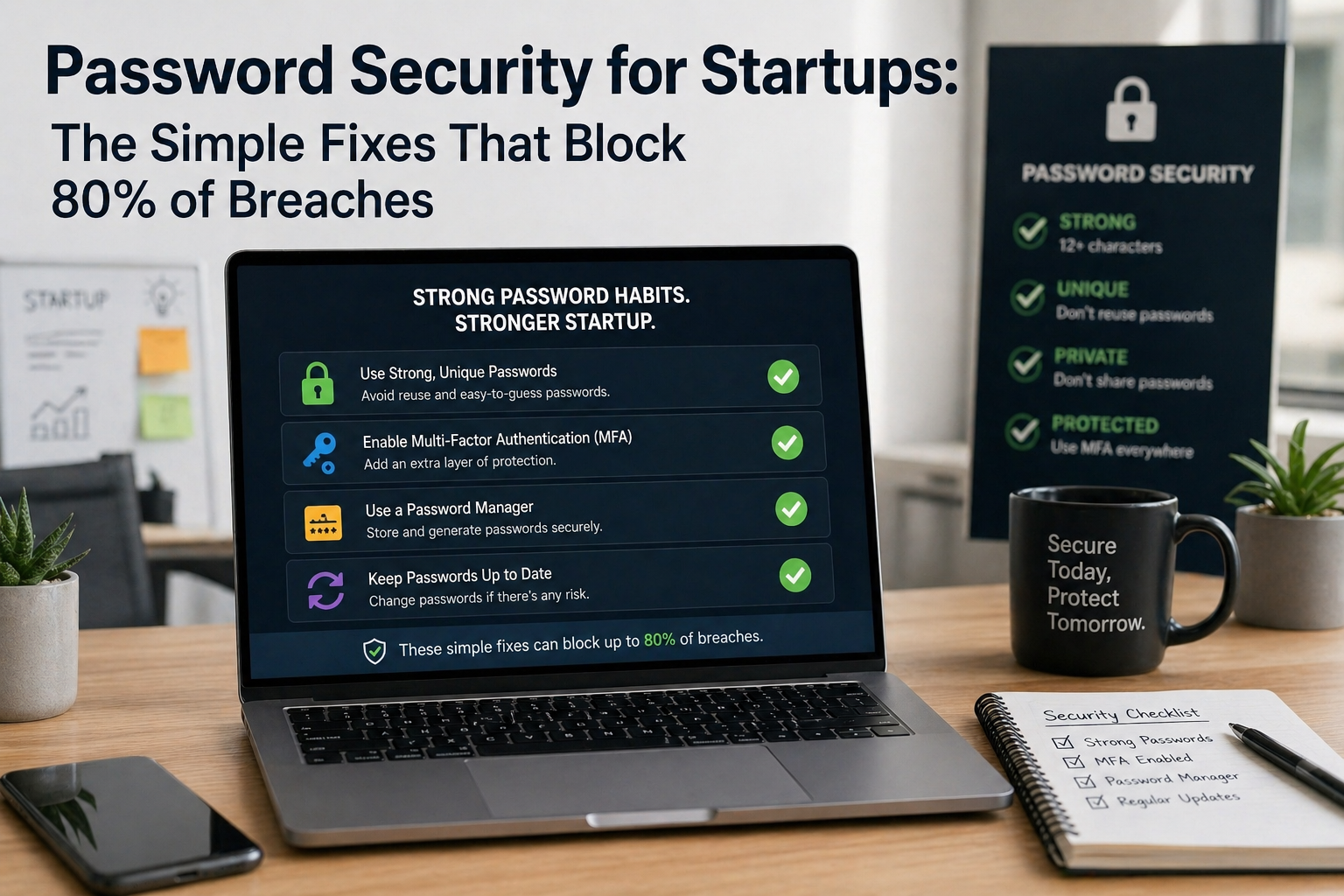
In 2024-2025, the single most common cause of a business data breach was still compromised credentials.
Not sophisticated zero-day exploits. Not nation-state actors. Someone reused their LinkedIn password for their work email, LinkedIn got breached, and attackers tried those credentials on other services.
It worked.
Password security is not glamorous. It doesn’t involve cutting-edge technology or complex architecture. But it remains, year after year, the most important and most underinvested area of security for growing companies.
Here’s what good looks like and how to get there.
Why Password Reuse Is Such a Problem
Every major website breach produces a database of username and password combinations. These databases are sold and shared on the dark web. Attackers use them in a technique called credential stuffing — systematically trying leaked combinations against other services.
Gmail. Office 365. AWS. Slack. Salesforce. Your internal systems.
If someone used the same password for LinkedIn as for their work email, and LinkedIn was in any of the breached databases (it has been, multiple times), that combination has probably been tried against your company’s systems.
This isn’t theoretical. It’s automated, continuous, and highly effective.
The solution is simple: every service should have a unique password. A password that was never used anywhere else can’t be in a leaked database.
The Human Problem
Unique passwords for every service creates an obvious problem: nobody can remember them all.
The solution is equally obvious: a password manager.
A password manager is an encrypted vault that stores all your passwords. You remember one master password. The manager generates and stores unique, complex passwords for every other service you use.
The leading options:
1Password – The market leader for business use. Excellent UI, strong security model, good business features including team management, admin controls, and integrations. Pricing: around £7-8 per user per month for the business plan.
Bitwarden – Open source, highly audited, significantly cheaper than 1Password (around £3 per user per month for teams). Excellent security. Slightly less polished than 1Password but functionally excellent.
Dashlane – Strong option with good business features. More expensive than Bitwarden, similar to 1Password.
For most growing companies, 1Password or Bitwarden are the right choices. The difference is primarily price and preference — both are secure and well-supported.
Making the Password Manager Work in Practice
A password manager is only effective if people use it consistently. Implementation matters as much as selection.
Make it mandatory, not optional.
If the password manager is available but not required, some people will use it and others won’t. The ones who don’t are your security risk.
Deploy it as part of onboarding.
New hire gets their laptop, their Google account, and their 1Password account on day one. It’s not an optional add-on — it’s part of the standard setup.
Use the browser extension.
The friction of using a password manager drops to near-zero with the browser extension. It auto-fills credentials, prompts to save new ones, and flags when you’re reusing a password.
Import existing passwords. Help people import their existing saved passwords from Chrome or other sources into the password manager. Don’t leave them with a parallel system.
Audit password health regularly.
Most password managers include a security dashboard that identifies reused passwords, weak passwords, and credentials from known breaches. Review it. Act on the findings.
MFA: The Second Line of Defence
Even with unique passwords, MFA (multi-factor authentication) is essential.
MFA means that logging in requires something you know (your password) and something you have (your phone, a hardware key). Even if a password is compromised, an attacker can’t log in without the second factor.
For most companies, the right approach:
Enforce MFA on your identity provider.
If you use Okta, JumpCloud, or Google Workspace as your SSO, enforce MFA at the identity layer. This protects every connected service.
Use an authenticator app, not SMS. SMS-based MFA is vulnerable to SIM swapping attacks. Google Authenticator, Authy, or 1Password’s built-in TOTP generator are better options.
Consider hardware keys for high-privilege accounts. For admin accounts — Google Workspace admin, AWS root, your financial systems — a hardware security key (YubiKey) is the gold standard. These are resistant to phishing attacks that can bypass software-based MFA.
SSO: Fewer Passwords, Better Control
Single Sign-On (SSO) takes password management a step further. With SSO, employees log in once to your identity provider (Google, Okta, JumpCloud) and get access to all connected SaaS tools without separate logins.
Benefits:
– Fewer passwords to manage (and potentially to compromise)
– Centralised access control — removing someone from your IdP removes their access to all connected tools
– Centralised MFA enforcement — one MFA setting applies everywhere
SSO is particularly valuable for offboarding. Instead of removing someone from 15 different tools individually, you suspend their account in your identity provider and access to everything is revoked simultaneously.
The Quick Wins: Do These This Week
If your company doesn’t have all of the above in place, here’s the priority order:
1. Deploy a password manager.This week. It’s the single highest-impact change you can make.
2. Enforce MFA on Google Workspace or your identity provider. 30 minutes in the admin console.
3. Audit for reused passwords. Use your password manager’s security dashboard or Have I Been Pwned to check which accounts are at risk.
4. Implement SSO for your most critical SaaS tools. Start with the tools that access the most sensitive data.
Find out where your password security stands as part of the free IT assessment at itops.zlefterov.com.